
Online ClusterVisor Upgrade
If a cluster is able to access the internet, ClusterVisor contains an automated tool that can perform the upgrade across all nodes and node images.
WebUI
In the web UI navigate to ClusterVisor Config → Software Upgrade
Click Upgrade to version to see available versions for install.
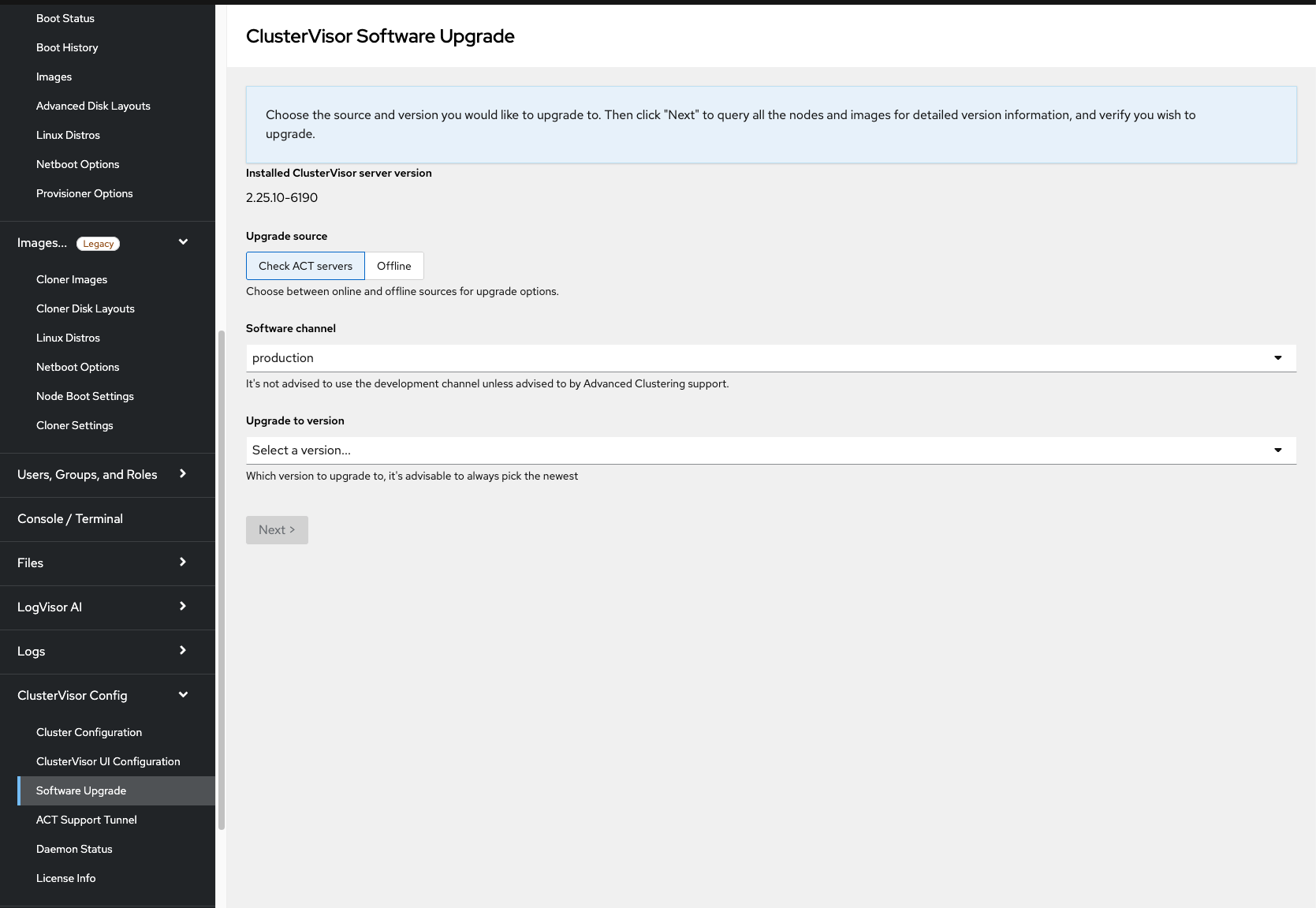
Once selected, click Next to begin the upgrade, following the prompts accordingly.
Unless advised by Advanced Clustering support, only use the “production” software channel for ClusterVisor upgrades, as updates from the “development” channel may contain updates not ready for production environments.
CLI
cv-upgrade -I
This will check ACT’s ClusterVisor repo for any updated version from the version currently installed, download the latest version, and install to all nodes.
The -I argument indicates to include updating ClusterVisor on all node images
-y can be added to assume “yes” to all prompts
Offline ClusterVisor Upgrade
For cluster that are “offline” or have heavy filters and restrictions, then the “offline upgrade” is required.
-
Check for CV updates by going to the ClusterVisor Version Browser (https://repo.advancedclustering.com/clustervisor)
-
Copy in your license key to the provided text box
-
The cluster admin will then receive the license key via email
-
If it needs to be sent again, please contact your sales representative or ACT support at support@advancedclustering.com
-
-
Once logged in, you can filter down all the versions with the version number, architecture, and release
-
Download the latest version, which download as a tar file, that looks something like:
2.25.10-6190.el9.x86_64.tar.gz -
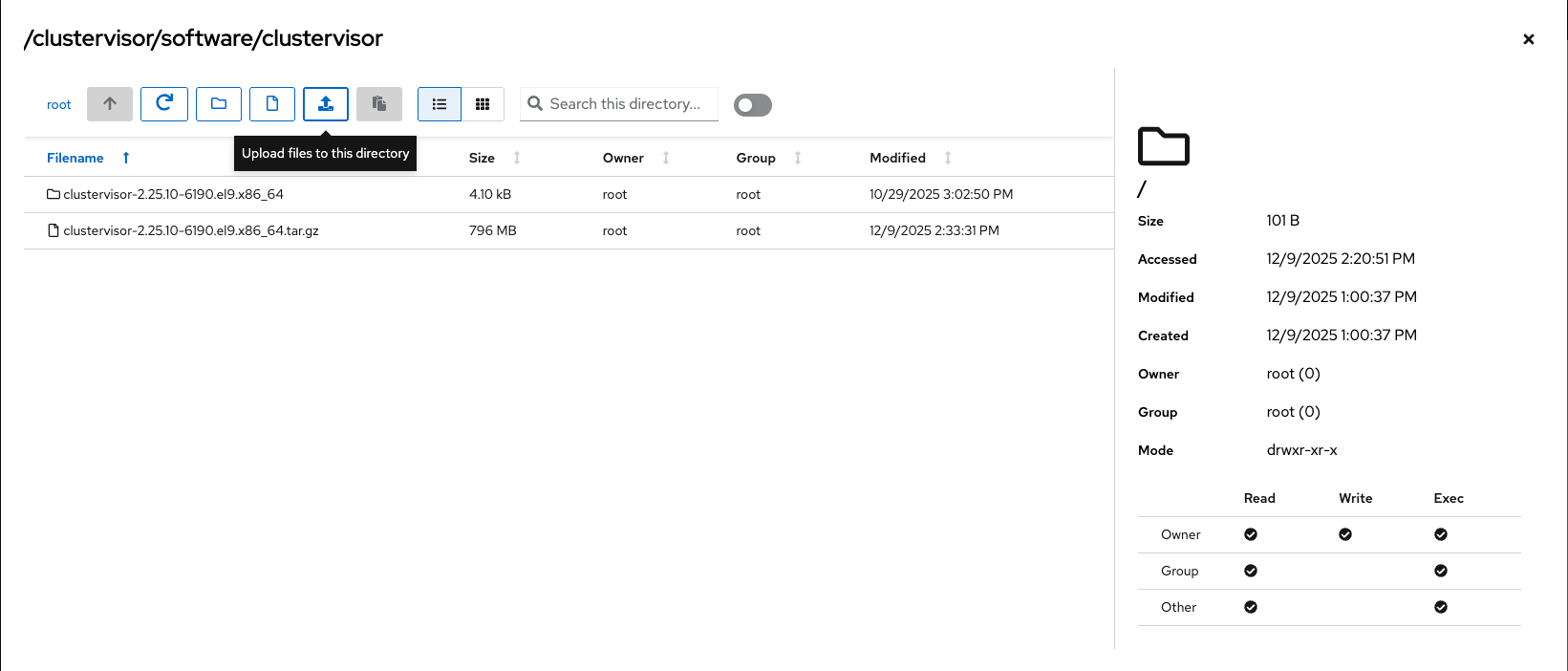
Copy that file over to either the head node or the appliance in this path:
/clustervisor/software/clustervisor/-
The file must exist here to upgrade via web UI
-
-
Verify the sha256sum
-
If you downloaded the checksum file you can do
sha256sum -c clustervisor-2.25.10-6190.el9.x86_64.tar.gz.checksum-
Otherwise you can run
sha256sum 2.25.10-6190.el9.x86_64.tar.gzand make sure it matches)
-
-
-
Once the sha256sum is verified you can then begin the upgrade:
Web UI
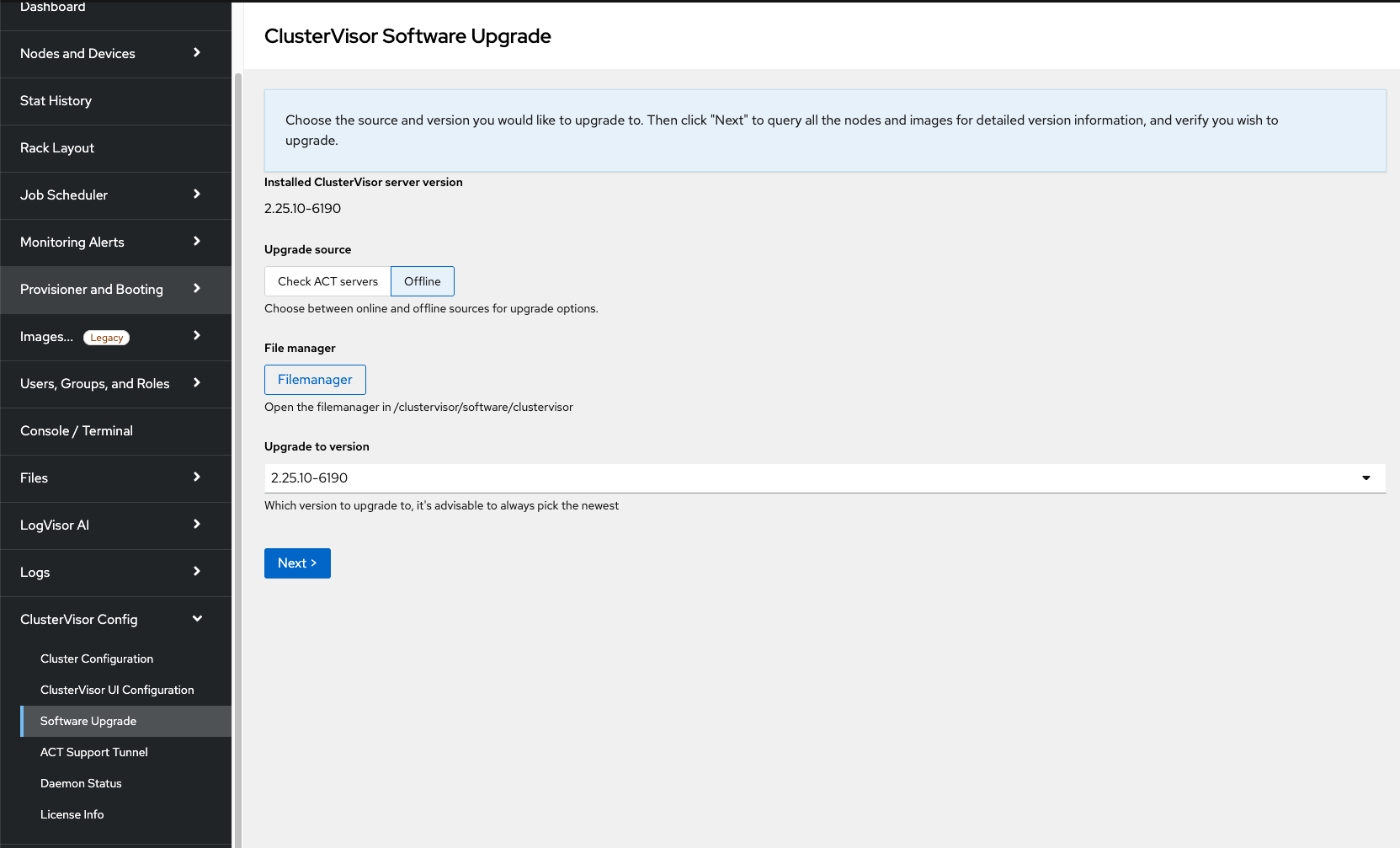
In the web UI navigate to ClusterVisor Config → Software Upgrade
Under Upgrade Source select Offline, then click select the version to upgrade to in the Upgrade to version dropdown
If you do not see the downloaded version, make sure the downloaded tar.gz file is located in /clustervisor/software/clustervisor/
The file can be uploaded from your local machine by clicking the Filemanager button below Upgrade Source. This will open a file browser to /clustervisor/software/clustervisor/. Locate the upload button – 
Once the file is uploaded, select the version from the Upgrade to version dropdown
Click Next to begin the upgrade, following all prompts accordingly
CLI
cv-upgrade -I --skip-download
Follow the prompts from there